Certifications
       Choosefireplacesandstoves.com is a BBB Accredited Business. Click for the BBB Business Review of this Fireplace Equipment - Retail in Sacramento CA
McAfee Secure sites help keep you safe from identity theft, credit card fraud, spyware, spam, viruses and online scams
Sign-Up for Special Member Only Fireplace & Stove Sales
Fireplaces, Stoves, Fireplace Inserts, Fireboxes & More...
Fireplaces
Furnaces
Heaters
Other Products
Stoves
Inserts
Fireboxes
Outdoor Products
Gas Log Sets
Fireplaces & Stoves by Brand
Best Selling
Free Shipping
Clearance Sales
Installation and Repair Services
Search Fireplaces, Stoves, Inserts & More...
Advanced Search
Featured Testimonial

"I love my fireplace......had it installed, works great! I'm still very pleased with your help. My dilemma was on three places in the manual it gave clearances of a minimum 63 in., two other pages gave min. clearances of 48 3/8in from the base of the appliance to the top cover of the enclosure (cabinet). I framed it to 63in. looked awful, too high..... fireplace."

Again, wish you well and thanks for your help.

Bob Cumiford

More Customer Testimonials & Reviews

My Cart
Cart is Empty
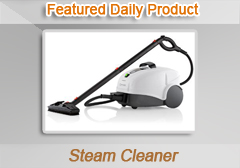
Featured Daily Product
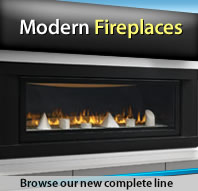
Modern Fireplaces
Chat - Expert Consultants
Save $1500!
Fireplace & Stove Brands
Napoleon Fireplaces and Stoves
Share Fireplace & Stove Products, News & Info
How to Enable Cookies

To enable cookies, follow the instructions below for the browser version you are using.

Mozilla Firefox (1.0 final release and earlier)
  • Go to the "Tools" menu.
  • Select "Options".
  • Select the "Privacy" icon in the left panel.
  • Check the box corresponding to "Allow sites to set cookies".
  • Click "OK" to save changes.
Netscape 7.1/Mozilla 5.0
  • Select "Preferences" from the Edit menu.
  • Click on the arrow next to "Privacy & Security" in the scrolling window to expand.
  • Under "Privacy & Security", select "Cookies."
  • Select "Enable all cookies".
  • Click "OK".
Microsoft Internet Explorer 6.0+
  • Select "Internet Options" from the Tools menu.
  • Click on the "Privacy" tab.
  • Click the "Default" button (or manually slide the bar down to "Medium") under "Settings".
  • Click "OK".
Microsoft Internet Explorer 5.x
  • Select "Internet Options" from the Tools menu.
  • Click on the "Security" tab.
  • Click the "Custom Level" button.
  • Scroll down to the "Cookies" section.
  • To enable:
    • Set "Allow cookies that are stored on your computer" to "Enable".
    • Set "Allow per-session cookies" to "Enable".
  • Click "OK".
Microsoft Internet Explorer 4.x
  • Select "Internet Options" from the View menu.
  • Click on the "Advanced" tab.
  • Scroll down to find "Cookies" within the "Security" section.
  • To enable:
    • Select "Always accept cookies".
  • Click "OK".
Netscape Communicator 4.x
  • Select "Preferences" from the Edit menu.
  • Find the "Cookies" section in the "Advanced" category.
  • To enable:
    • Select "Accept all cookies" (or "Enable all cookies").
  • Click "OK".
 
  Copyright © 2009, ChooseFireplacesandStoves.com. All rights reserved.